LattePanda

I picked up a new toy this week to replace my aging and rarely-used Raspberry Pi 3 (original). It came with Windows 10 already on it and I immediate went to the forums for a howto on installing Linux. There is a guide on how to install Ubuntu 16.04 but it seems to require a lot of extra steps (special kernel, etc).  I figured it couldn’t hurt to try it with OpenSUSE. At worst it would fail and I would be left with Ubuntu.

To my surprise, it worked and it was easier than the steps that were provided. The thing with the LattePanda is that it is UEFI-only.  There is no legacy boot mode so if your distro doesn’t have a UEFI-enabled installer, then you are out of luck.

Edit: It’s not just UEFI only, it’s Trusted UEFI only.  That means that if your distro doesn’t have a trusted EFI key, then the bios won’t even recognize it. Canonical/Ubuntu, Redhat/CentOS/Fedora, and SUSE/OpenSUSE have trusted EFI keys and work. Mostly, I think because they have corporate sponsorship and they have a vested interest in working with hardware vendors.

Here’s the basic steps:

  1. Flash the “Ubuntu” bios (this will allow you to boot the Linux USB key)
  2. Burn the OpenSUSE iso to a USB 3.0 Key
  3. When trying to boot with the key, it froze when the installer brought up the GUI.
    Workaround: Reboot and add “textmode=1” to the boot loader for the installer.

Screenshot at 2018-08-18 15-23-30

  1. Install using ncurses installer. It’s a little clunky but all of the options are there.

ss3
5. Reboot after the installer finishes. Everything is as it should be. No more freezes, no special kernel, everything works great.

One last thing. The LattePanda has both HDMI and composite. Linux assumes composite out is Display 1 and HDMI is Display 2.  If you are running headless, then this is fine. If not, you will need to with your desktop environment to disable Display 1. I tend to use the i3 desktop for work and this was easy for me to workaround. It can be a hassle for others. I think this will be the case no matter which distro you use.

Fixing Archive.org’s PDFs

Here’s the webpage for a very early edition of Huckleberry Finn. If you open the PDF using a modern PC or tablet, it will look fine though a little slow to load. If you open it on your Kindle, Nook Color, or some other older Ebook reader that displays PDFs, you’re in for a shock.

Each page in these PDFs are actually 3 images. When put together by a modern PDF reader, they make one nice scanned PDF page. If you’re not suing a modern reader, you see all 3 layers separately. This makes the book unreadable. Even if you are using a modern reader, these PDFs have a noticeable lag time compared to other documents because it is loading 3 images per page.

This guide which show you how to eliminate the first two images and reverse the third image to be white on black. Will this 100% fix the book?  No. However if you value text over presentation, it does make the book readable on any device including the good old E-ink Kindle.

Step 1. Install the applications (OpenSUSE)

sudo zypper in pdfmod imagemagick pandoc grename

Step 2. Convert the PDF to images. Create a directory for the files to go to first:

mkdir huck
pdfimages huckleberry.pdf huck/

Step 3. The files that are created are all -xxx.ppm and .pbm: Bash doesn’t like this. I use grename to rename every file so that they don’t begin with a hyphen

Step 4. cd to the directory and delete the extra image files:

cd huck
rm *.ppm

Step 5. Reverse the images of the .pbm files. This will create a new copy of the files with inverted colors.

for i in *; do convert -monochrome -colors 2 -depth 1 -negate $i in-$i; done

Step 6. Move the completed files to a next directory and delete the originals

mkdir finished
mv in* finished/
rm *.pbm

Step 7. cd to the finished directory and create a new pdf. This will take time and may freeze your computer. Be patient.

cd finished
convert `ls -v` huck_bw.pdf

Step 8. Shrink your newly created PDF because it is far too large right now.

gs -sDEVICE=pdfwrite -dCompatibilityLevel=1.4 -dPDFSETTINGS=/screen \
-dNOPAUSE -dQUIET -dBATCH -sOutputFile=huck_bw_final.pdf huck_bw.pdf

Your new PDF is complete. It is not a pretty as the original but it is more handy.

I then use pdfmod to edit the metadata so the ebook is easier to work with in calibre.

I’m very interested if anyone has found a better way to do this with open source software that retains the color of the original but without the multiple layers.

Creating the Ultimate Container Playground: Salt in LXD

Introduction: Installing Saltstack

The great thing about being able to spin up several new system containers running multiple Linux distros is that you get to experiment with software like Saltstack without the hassle of creating multiple VM’s. This can be especially daunting on a machine that is lacking resources.

The following directions are how I installed Salt on multiple containers running at the same time but using less that 2G of RAM total for testing. Saltstack easily controlled all of their very different package manager and system configurations effortlessly.

Master and Minion on OpenSUSE

zypper in salt-master salt-minion
echo "10.132.120.155" >> /etc/hosts
systemctl enable salt-master
systemctl start salt-master
systemctl enable salt-minion
systemctl start salt-minion

Minion on Fedora

dnf install salt-minion
echo "10.132.120.155" >> /etc/hosts
systemctl enable salt-minion
systemctl start salt-minion

Minion on Ubuntu

apt update
sudo apt install salt-minion
echo "10.132.120.155" >> /etc/hosts
systemctl enable salt-minion
systemctl restart salt-minion

Minion on Arch

pacman -S salt
echo "10.132.120.155" >> /etc/hosts
systemctl enable salt-minion
systemctl start salt-minion

Minion on CentOS

vim /etc/yum.repos.d/saltstack.repo (see https://docs.saltstack.com/en/latest/topics/installation/rhel.html)
echo "10.132.120.155" >> /etc/hosts
yum install salt-minion
systemctl enable salt-minion
systemctl start salt-minion

Set up Salt Master

opensuse:~ # salt-key -A
The following keys are going to be accepted:
Unaccepted Keys:
opensuse
ubuntu.lxd
arch
fedora
centos
Proceed? [n/Y] y
Key for minion opensuse accepted.
Key for minion ubuntu.lxd accepted.
Key for minion arch accepted.
Key for minion fedora accepted.
Key for minion centos accepted.

Testing Saltstack

opensuse:~ # salt '*' grains.get os         
ubuntu.lxd:
    Ubuntu
centos:
    CentOS
arch:
    Arch
fedora:
    Fedora
opensuse:
    SUSE
opensuse:~ # salt '*' grains.get saltversion
fedora:
    2017.7.3
ubuntu.lxd:
    2017.7.4
centos:
    2018.3.0
opensuse:
    2018.3.0
arch:
    2018.3.0

Install a package

opensuse:~ # salt '*' pkg.install mutt
arch:
    ----------
    mailcap:
        ----------
        new:
            2.1.48+14+g5811758-1
        old:
    mutt:
        ----------
        new:
            1.10.0-1
        old:
centos:
    ----------
    mailcap:
        ----------
        new:
            2.1.41-2.el7
        old:
    mutt:
        ----------
        new:
            5:1.5.21-27.el7
        old:
    tokyocabinet:
        ----------
        new:
            1.4.48-3.el7
        old:
    urlview:
        ----------
        new:
            0.9-15.20121210git6cfcad.el7
        old:
fedora:
    ----------
    mailcap:
        ----------
        new:
            2.1.48-2.fc27
        old:
    mutt:
        ----------
        new:
            5:1.9.2-1.fc27
        old:
    perl-Time-Local:
        ----------
        new:
            1:1.250-394.fc27
        old:
    tokyocabinet:
        ----------
        new:
            1.4.48-9.fc27
        old:
    urlview:
        ----------
        new:
            0.9-22.20131022git08767a.fc27
        old:
opensuse:
    ----------
    exim:
        ----------
        new:
            4.86.2-20.1
        old:
    libgc1:
        ----------
        new:
            7.2d-11.3
        old:
    libgmime-2_6-0:
        ----------
        new:
            2.6.20-6.3
        old:
    libgpgme11:
        ----------
        new:
            1.9.0-1.3
        old:
    libkyotocabinet16:
        ----------
        new:
            1.2.76-16.1
        old:
    liblua5_2:
        ----------
        new:
            5.2.4-6.1
        old:
    libmysqlclient18:
        ----------
        new:
            10.0.34-32.2
        old:
    libnotmuch4:
        ----------
        new:
            0.22.1-3.17
        old:
    libpq5:
        ----------
        new:
            9.6.8-15.1
        old:
    libspf2-2:
        ----------
        new:
            1.2.10-8.1
        old:
    libtalloc2:
        ----------
        new:
            2.1.10-2.3.1
        old:
    libxapian22:
        ----------
        new:
            1.2.21-5.3
        old:
    mutt:
        ----------
        new:
            1.8.2-1.7
        old:
    mutt-doc:
        ----------
        new:
            1.8.2-1.7
        old:
    mutt-lang:
        ----------
        new:
            1.8.2-1.7
        old:
    perl-Expect:
        ----------
        new:
            1.32-5.1
        old:
    perl-IO-Tty:
        ----------
        new:
            1.12-6.1
        old:
    python-curses:
        ----------
        new:
            2.7.13-27.3.1
        old:
    python-urwid:
        ----------
        new:
            1.3.0-6.2
        old:
    urlscan:
        ----------
        new:
            0.8.3-1.2
        old:
    urlview:
        ----------
        new:
            0.9-737.1
        old:
    w3m:
        ----------
        new:
            0.5.3.git20161120-163.3
        old:
ubuntu.lxd:
    ----------
    imap-client:
        ----------
        new:
            1
        old:
    libgpgme11:
        ----------
        new:
            1.10.0-1ubuntu1
        old:
    libtokyocabinet9:
        ----------
        new:
            1.4.48-11
        old:
    mutt:
        ----------
        new:
            1.9.4-3
        old:
opensuse:~ # 

Creating the Ultimate Container Playground: LXD on Kubic

Introduction

LXC (Linux Containers) are whole-system containers. They are meant to be able to do just about anything you can do with a VM with a percentage of the system resources and and a tiny startup time.

During Installation:

During installation, you can pretty much choose defaults for everything except you will need to create two additional btrfs subvolumes and if you gave your VM more than 30G of space, you will need to specify that manually because the installer will only recognize 30G by default.

Create btrfs subvolumes for:
/snap
/media

After Installation

Add the snappy repo

sudo zypper addrepo --refresh http://download.opensuse.org/repositories/system:/snappy/openSUSE_Tumbleweed/ snappy

Create the last subvolume needed for snappy

sudo btrfs subvolume create /var/lib/snapd

Install snappy

sudo transactional-update pkg install snapd

reboot

Enable and start the snapd service

sudo systemctl enable snapd && sudo systemctl start snapd

Install the LXD snap

sudo snap install lxd

Setup

Initialize LXD

lxd init (choose defaults to make life easier the first time)

Create your first LXC container. The first time you create the container, LXD will download the image. After that any new containers build from that image will start very quickly.

lxc launch images:opensuse/42.3 opensuse

Enter into your first container

lxc exec opensuse bash

Create a complete Tor Onion Service with Docker and OpenSUSE (EXPANDED)

I wrote this presentation on the weekends in April and May and it’s didn’t have quite the details that I wanted to put into it. Mostly I wanted it to be short and engaging. Putting in every detail that I wanted would have (I thought) been long and boring. I would like to take the time here to expand what went into the presentation and to make it a little more interesting.

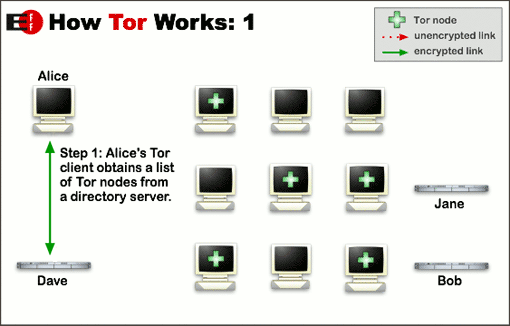
htw1 (1)

I don’t really like these diagrams. They already existed on tor-project.org and were made by the EFF but it’s too high level and they don’t really tell the story that I wanted to tell. The actual description on how onion services with is here: https://www.torproject.org/docs/onion-services.html.en

I could have done a better job than what I did. The way that I prefer to describe it is like this:

After configuring your /etc/tor/torrc file, you run systemctl tor start and the local Tor daemon reaches out to the Tor networks and lets it know that you are running a local onion service. This creates a two-way link between your machine and the Tor network which is UDP traffic rather than TCP/IP as the Tor network never sees your actual local IP.

If I’m honest with myself, this is still pretty weak but it’s better than what I had. The best thing would be to take the information from Tor website almost verbatim and made slides but I didn’t do that.

Screenshot_20180527_142714

I glossed over this when I should have made more slides to help fill out the presentation. The brief anecdotes and really touch on a lot of reason why I think people should be using onion services such as:

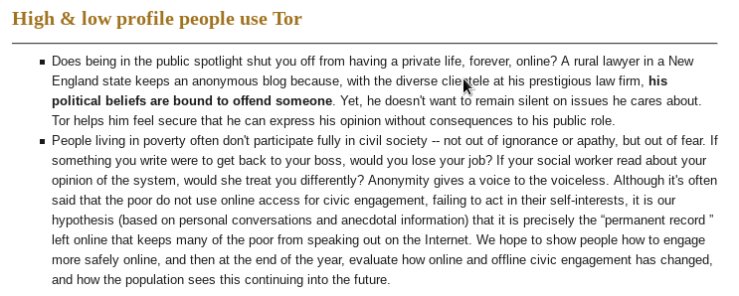
Screenshot_20180527_143138

Being in the spotlight might just mean having a job where people know who you are. No matter who you are, there is a good chance that your political ideas will offend someone. Personally, I keep a strict no religion/no politics policy for myself at work. I just nod my head to everyone like I agree and/or understand. At home, it’s a different story. I am a political person and I care deeply about politics but I don’t want that interfering with my role at my company and I’m not alone. This is the point that would have had more punch than what I made and would have been a better case study on why onion sites are useful and needed.

Screenshot_20180527_144036

The first two should have been one topic and the last should have been a call back to a better description of how the onion routing and encryption works.

Silk_Road_Marketplace_Item_Screen

Nefarious websites such as Silk Road and the Playpen were better case studies on how onion services are misused.

Finally, I think more details on how the docker-compose files are built would have been more useful as well as some hands-on interaction. Those file are all at my Github but I ran through them so quickly I didn’t really give the audience time to see them during the presentation.

Why are there toilets on my openSUSE wallpaper?

First of all, the entire wallpaper is here:

On the right-hand side, there are these cool line-art cad drawing with Geeko in the middle. The problem is that these aren’t just just random lines nor are they circuits boards or anything like that. These are architectural blueprints. There are 5 full bathroom and a small piece of a 6th. There’s also a couple of conference rooms.

My proof:

Why do I care?

I think it’s hilarious. It’s a strange decision for a wallpaper and I bizarre easter egg to find.

Container Confession

Hi, my name is Jason and I use containers in other containers and I’m unhappy that I can’t run even other containers inside of those.

I’m not a big fan of Canonical’s snapd application containers, but they have one application there that I can’t get anywhere else for openSUSE outside of building it all from source and that is LXD. LXD is a hypervisor for Linux Containers a.k.a. LXC. With LXD, I can create full system containers that have much of the same functionality as VMs without the virtualization overhead and unlike Docker application containers, it provides a full environment to work in, not just enough to run one application.

My goal is to use LXD to create very quick and small environments to play with new tools in a safe sandbox. If I screw something up, I can create a new VM in less than 10 seconds or revert it to a previous save state even quicker instead of the time it takes to do the same in Virtualbox or KVM.

One of the things that I would like to do is play with Docker containers in my LXC container that is running in a snapd container. Well, that just doesn’t work. Mostly apparmor is confused and by default, it is doing it’s job.

root@docker-test:~# docker run -it hello-world
Unable to find image 'hello-world:latest' locally
latest: Pulling from library/hello-world
ca4f61b1923c: Pull complete
Digest: sha256:97ce6fa4b6cdc0790cda65fe7290b74cfebd9fa0c9b8c38e979330d547d22ce1
Status: Downloaded newer image for hello-world:latest
docker: Error response from daemon: Could not check if docker-default AppArmor profile was loaded: open /sys/kernel/security/apparmor/profiles: permission denied.
root@docker-test:~#

So, that’s what I’m playing with today. If I get it to work, I’ll post it here.

My SSH Trick

10 hours of jetlag and rainy afternoon naps don’t mix. It’s 2 minutes to 2AM here in Provo, UT and I can’t sleep so I’m blogging.

I want to ssh into a machine that doesn’t have any external IP. In the case of my situation at home, I get a 192.168… IP from my ISP because of a shared connection. In other cases, I have VM’s with natted IP’s that also have no direct way in.

I could pay for a VPN service and vpn into these machines, but instead I’m using a free way of doing it. I use Tor.

Here’s how it works, the Tor service reaches out to the Tor network and is listening on port 22 (or whatever port I choose for ssh) for incoming requests. I use “torsocks ssh zzzzzzzzz.onion” from my laptop and I am in. This bypasses the external internet and gives me a pretty secure route from my laptop to my home machine only via Tor.

Here’s how I set it up with OpenSUSE

On your remote or inaccessible server:

$ sudo zypper in tor

This installs the tor service and the torsocks proxy app.

$ sudo vim /etc/tor/torrc

Uncomment the following lines:

HiddenServiceDir /var/lib/tor/hidden_service/
HiddenServicePort 22 127.0.0.1:22
$sudo systemctl start tor

The service is now started and you should have a new .onion address

$ cat /var/lib/tor/hidden_service/hostname

On your local machine/laptop/etc:

$ sudo zypper in tor
$ sudo systemctl start tor
$ torsocks ssh xxxxxxxxx.onion

This is a cool trick. Of course you can use it on any server/VM/etc even if they do have accessible IP’s. In those cases, I suggest that you close the firewall on port 22 and allow it to be only accessible via Tor. There is no need to have extra ports open to the internet.

Using Tor is a great way to add security to your network communication. In addition to the SSH encryption, the packets have additional encryption due to the nature of how Tor works.

About privacy. You also benefit from the inherent privacy of the Tor network which you might not get if you believe that your ISP, etc is gathering data on it’s users. If they are monitoring packets are that interested, they can probably see that you are using Tor but they can’t see what you are doing or where you are connecting. Is it more or less private that using the Tor Browser? I don’t know. It’s worth looking into. My feeling is that since ssh is low-bandwidth, has no possible extra problems that browsers have such as javascript, vulnerabilities, etc. it probably is as safe or safer.

Anyway, I hope this helps people out if you’re like me and have to make do with an ISP that makes using the web just a little harder.

One last thing. Tor is more laggy than a straight connection. You’re not doing anything wrong, it’s just a side-effect of how this all works.